Creating a professional company profile presentation does not always require a complicated design. With the Section Zoom feature in Microsoft PowerPoint, you can create a presentation that looks modern, interactive, and easy to navigate.
In combination with Slide Zoom and Morph transitions, Section Zoom can transform a traditional PowerPoint presentation into a more engaging and dynamic experience.
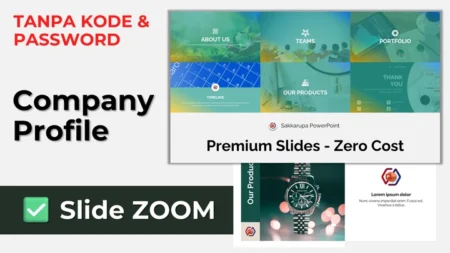
For Free PPT 121, Sakkarupa is sharing a Company Profile PPT Template using Section Zoom that can be used for various purposes, including company presentations, business proposals, organization profiles, project presentations, and business portfolios.
Download Free Company Profile PPT Template
This free PowerPoint template is designed with a modern and interactive company profile concept. Unlike a conventional presentation that moves through slides in a linear sequence, this template uses Section Zoom as an interactive navigation system.
The main slide can function as a visual dashboard, allowing presenters to jump directly to the section they want to show.
The template is also easy to customize using Microsoft PowerPoint without requiring additional graphic design software. You can download and edit the template directly without a code or password.
Features of the Company Profile PPT Template
Here are some of the key features included in this PowerPoint template:
- Modern and professional design
- Uses the PowerPoint Section Zoom feature
- Interactive presentation navigation
- Suitable for company profile presentations
- Easy to edit text, images, colors, and other elements
- Suitable for business presentations
- Can be used for company proposals
- Fully editable in Microsoft PowerPoint
- No coding required
- Can be reused for different presentation purposes
- Compatible with Slide Zoom and Morph transition concepts
Whether you are preparing a corporate presentation, business proposal, or portfolio, this template provides a flexible foundation that can be adapted to your needs.
What Is Section Zoom in PowerPoint?
Section Zoom is a PowerPoint feature that allows you to create interactive navigation to specific sections of a presentation.
Instead of presenting every slide sequentially, you can create a main navigation slide that acts like a dashboard. From this slide, the presenter can select a specific section and jump directly to it.
For example, a company profile presentation could include sections such as:
- About Us
- Company Overview
- Our Team
- Portfolio
- Products & Services
- Timeline
- Contact
With Section Zoom, these sections can be displayed as interactive menu items on the main slide.
This approach is especially useful when you want to create a non-linear PowerPoint presentation where the presenter can decide which information to show based on the audience’s needs.
Company Profile PPT Template Structure
This Company Profile PowerPoint Template can be organized into several main sections. You can also add, remove, or rearrange sections depending on your company’s presentation requirements.
1. Company Overview
The Company Overview section can be used to introduce your company at a glance.
You can include information such as:
- Company name
- Year established
- Business industry
- Company vision and mission
- Short company description
- Key achievements
Keep the information concise and easy to scan so your audience can understand your company quickly.
2. About Us
The About Us section provides more detailed information about your company.
You can use this section to explain the company’s background, history, values, vision, mission, and other important information.
Instead of filling the slide with long paragraphs, use short statements supported by relevant visuals. This will make the presentation easier to understand and more visually appealing.
3. Our Team
The Our Team section is ideal for introducing your company’s management team or key employees.
You can display:
- Team member photos
- Names
- Job positions
- Areas of expertise
- Short descriptions
Introducing the people behind the company can make a company profile presentation feel more personal and trustworthy.
4. Portfolio
If your company has completed projects or previous work, the Portfolio section can be used to showcase them.
Use large, high-quality images combined with short project descriptions. Avoid adding too much text so the visual results remain the main focus of the slide.
You can include project names, client names, completion dates, services provided, or key results when relevant.
5. Products & Services
The Products & Services section can be used to showcase the products or services offered by your company.
Each product or service can include:
- Product or service image
- Name or title
- Short description
- Key features
- Supporting information
Using a consistent visual layout across this section will make your presentation look more professional and organized.
6. Contact
The Contact section can be used as the final part of your company profile presentation.
You can include:
- Company address
- Phone number
- Email address
- Website
- Social media accounts
- QR code
You can also add a button that returns the presenter to the main navigation slide. This keeps the Section Zoom experience interactive from beginning to end.
Advantages of Using Section Zoom
Using Section Zoom in PowerPoint provides a different presentation experience compared with a conventional slide-by-slide presentation.
With interactive navigation, the presenter does not have to follow a fixed sequence from the first slide to the last slide. Instead, you can select a specific section based on the questions or interests of your audience.
For example, imagine you are presenting your company to a potential client. If the client is primarily interested in your services, you can immediately open the Products & Services section without going through every slide in the presentation.
This makes the presentation more flexible and creates an experience similar to an interactive presentation dashboard.
Section Zoom + Slide Zoom + Morph Transition
One of the advantages of this template is that the navigation concept can be combined with other PowerPoint features, such as Slide Zoom and Morph transitions.
Section Zoom can be used to navigate between major sections, while Slide Zoom can provide more detailed navigation to individual slides.
Meanwhile, Morph transitions can create smoother visual movements between slides and make the presentation feel more dynamic.
When these features are combined effectively, a standard PowerPoint file can become a modern and interactive presentation without requiring any programming or coding.
Suitable for Various Presentation Needs
Although this template is designed as a company profile PowerPoint template, it is not limited to corporate presentations.
You can customize it for various purposes, including:
- Business presentations
- Company proposals
- Company presentations
- Business portfolios
- Product presentations
- Startup presentations
- Organization profiles
- Partnership proposals
- Project presentations
- Business pitch decks
- Marketing presentations
- Agency presentations
Simply replace the placeholder text, images, logo, colors, and company information to match your needs.
How to Edit the Company Profile PPT Template
The template is designed to be easy to customize. Open the downloaded file using Microsoft PowerPoint, then edit the elements according to your requirements.
Edit the Text
Replace the placeholder text with your company’s information, including the company description, services, team information, and contact details.
Replace the Images
You can replace the placeholder images with photos of your products, team members, office, completed projects, or other relevant visuals.
Customize the Colors
Adjust the colors to match your company’s brand identity. Using consistent brand colors can make the presentation look more professional and recognizable.
Replace the Logo
Replace the placeholder logo with your company logo. Make sure the logo is placed consistently throughout the presentation.
Customize the Sections
You can add, remove, rename, or rearrange sections according to the structure of your company profile.
Because the presentation uses Section Zoom, remember to check the navigation links after making significant changes to the sections.
Free Company Profile PPT Template Download
If you are looking for a free company profile PPT template, this template can be a useful option for creating a modern and interactive company presentation.
The Section Zoom concept allows the presentation to function as more than just a collection of slides. The main slide can act as a navigation dashboard that connects different parts of your presentation.
This template can also be used as a learning resource if you want to understand how to create an interactive PowerPoint presentation using Section Zoom.
You can customize the design according to your company’s branding and presentation requirements without needing coding skills.
Why Use an Interactive Company Profile Presentation?
A company profile is often used to introduce a business to potential clients, partners, investors, or other stakeholders. Because of this, the presentation should not only contain useful information but should also be easy to navigate.
An interactive company profile can help presenters:
- Navigate between sections more quickly
- Focus on information relevant to the audience
- Create a more engaging presentation experience
- Present information in a non-linear structure
- Make important sections easier to access
- Create a more modern presentation style
Section Zoom is particularly useful when the presentation needs to adapt to different audiences and situations.
Conclusion
The Company Profile PPT Template using Section Zoom is a great choice if you want to create a professional, modern, and interactive company presentation.
By using Section Zoom, you can turn the main slide into a visual dashboard and connect it to different sections of your presentation. Combined with Slide Zoom and Morph transitions, the result can be a more flexible and engaging PowerPoint presentation.
You can customize the template by changing the logo, colors, images, text, and sections to match your company’s visual identity.
If you are looking for a free PowerPoint company profile template, this template can be a useful starting point for creating an interactive business presentation.
Download the free Company Profile PPT Template | PPT Gratis 121 and create a professional company presentation with interactive PowerPoint navigation.