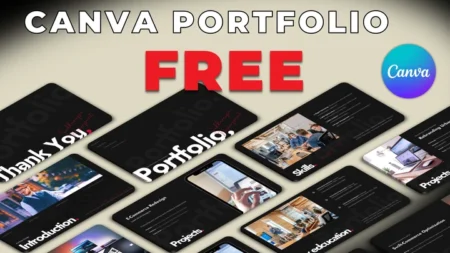
In today’s competitive digital landscape, your first impression often happens through a screen. To stand out, you need a professional profile that balances aesthetics with clarity. Using a free Canva portfolio template is an excellent way to showcase your expertise without spending hours on design. This specific digital showcase offers a premium, high-end feel that highlights your projects effectively. Consequently, you can focus on your content while the layout handles the visual storytelling for you. Whether you are a creative or a technical expert, this presentation deck ensures your work looks polished and modern.
Showcase
Key Features of the Template
This Canva portfolio template for web developers and professionals includes everything you need to build a compelling narrative. Here are the primary highlights:
- Dark Minimalism: A sleek, high-contrast dark mode design that reduces eye strain and looks modern.
- 10 Versatile Slides: Includes a cover page, “About Me,” project showcases, technical skills, and a contact slide.
- Clean Layout: Plenty of white space (or “dark space”) to ensure your text remains readable.
- Fully Responsive: Optimized for viewing on both desktop monitors and mobile devices.
- Customizable Elements: You can adjust every icon, color, and font to match your personal branding.
Customization Tips
Making this template your own is incredibly simple. Follow these quick guides to tailor the design to your needs.
How to Change Pictures in Canva
To begin with, you should replace the placeholder images with your own project screenshots.
- Upload your images to the “Uploads” tab on the left sidebar.
- Select the photo you want to use from your library.
- Drag and drop the image directly onto the existing frame in the template.
- Canva will automatically crop and fit the photo into the frame.
How to Change Fonts in Canva
Furthermore, you can adjust the typography to better suit your style.
- Click on any text box within the slide.
- Navigate to the font dropdown menu located in the top toolbar.
- Search for a new font or choose from the curated list.
- To change the font across the entire presentation, click the “Change All” button that appears at the bottom of the sidebar.
How to Export or Share in Canva
Finally, once your portfolio is ready, you need to share it with the world.
- Click the “Share” button in the top right corner.
- Select “Download” to save it as a PDF (best for emails) or high-quality PNGs.
- Alternatively, select “Public View Link” if you want to send a live, interactive link to recruiters or clients.
Direct Canva Link
Ready to level up your professional presence? Use the link below to access your copy of this minimalist deck.
- Click the Canva link provided below.
- You will be redirected to the official Canva website.
- Click the “Use Template” button to start editing immediately.
➡️ Download Your Free Portfolio Template Here
FAQ
No, this template is designed using free elements, so you can edit and download it with a standard free account.
Absolutely. While it is a popular Canva portfolio template for web developers, the clean and minimalist layout works perfectly for designers, marketers, and students alike.
Yes, you can easily duplicate any existing slide by clicking the “Duplicate” icon above the slide thumbnail to expand your portfolio.